What a reserved IP is used for
Since you know the IP address in advance, you can pre-configure your services for it—for example, create a DNS record for this IP or configure the server to connect to it. A reserved IP can also be used as a virtual IP address.How it works
After you create a reserved IP, this address becomes yours inside our system. No one can use it except you.How it is charged
The monthly price for the IP is displayed in the order window. You pay only for the time from creating an IP to deleting it. For example, if you had reserved an IP and then deleted it after an hour, you will be charged only for an hour of use. The price remains the same whether the IP address is assigned to a Virtual Machine or not.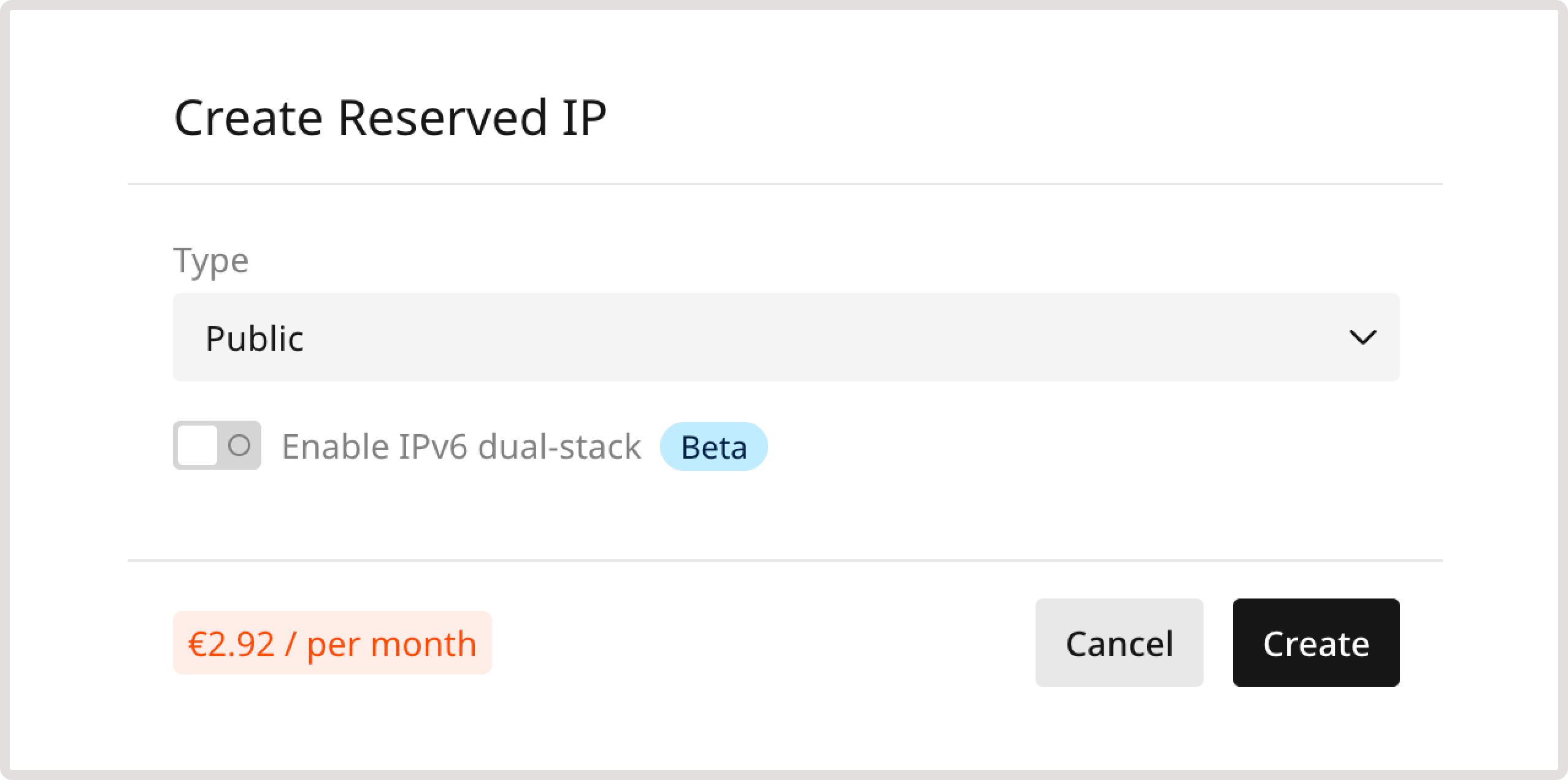
Reserve an IP address
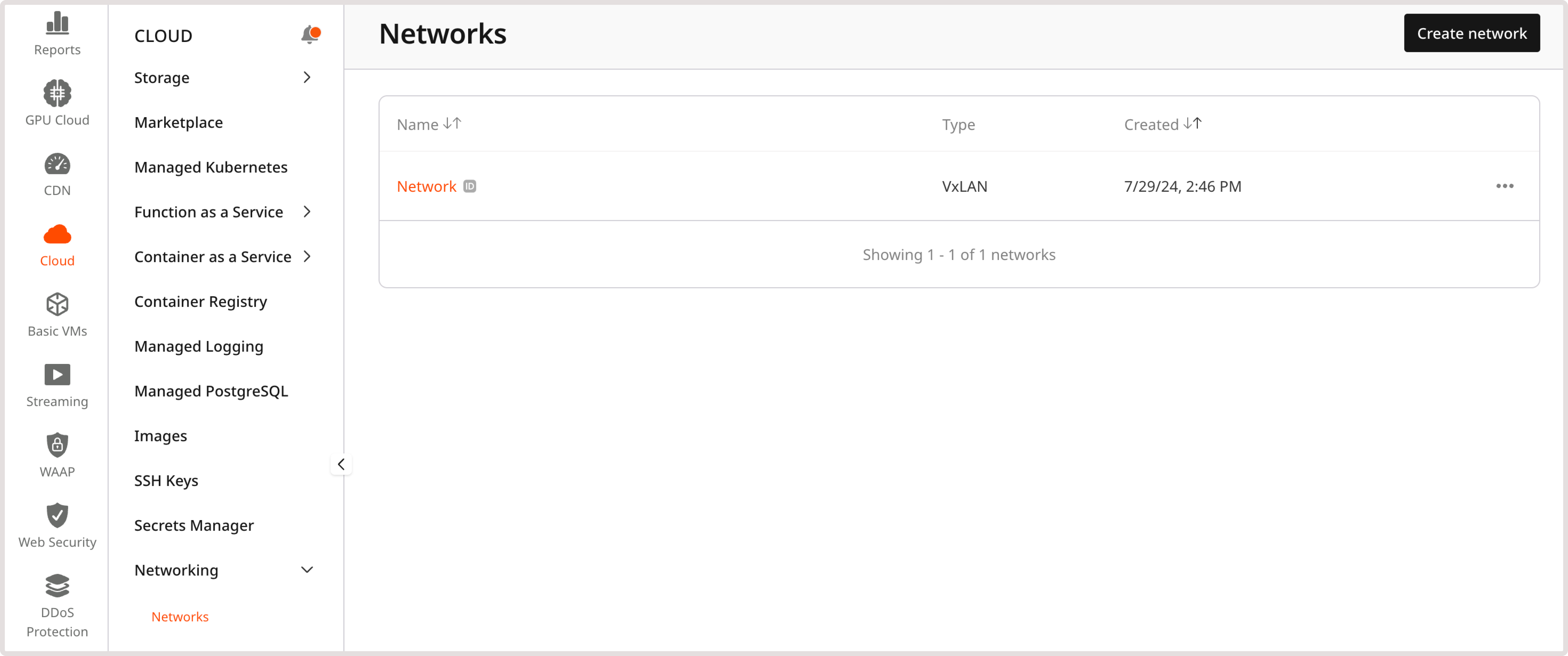
- In the Gcore Customer Portal, navigate to Cloud > Networking.
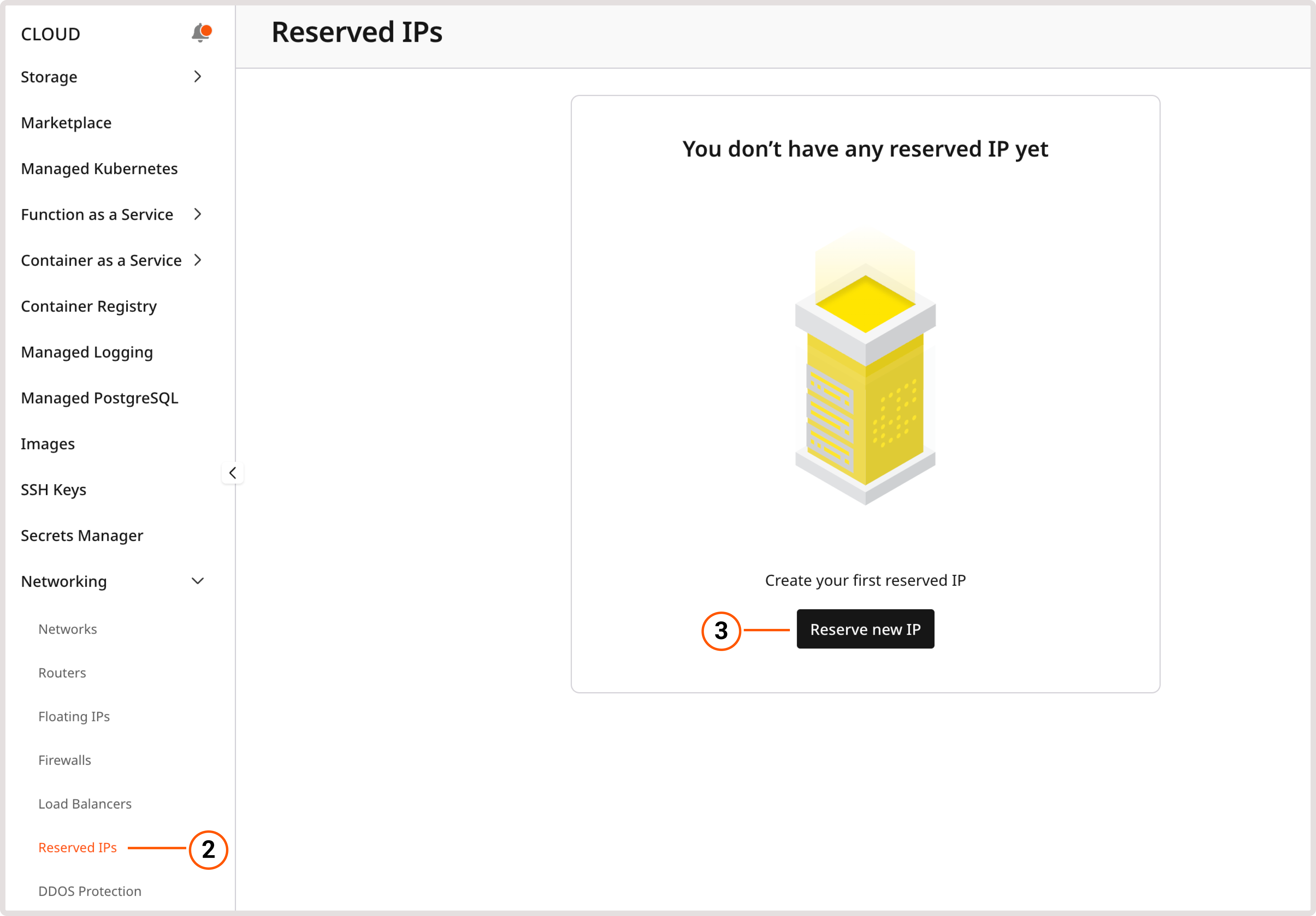
- Open the Reserved IPs page.
InfoYou can have up to 1000 reserved fixed IP addresses that are not attached to any resource in your project.
- Click Reserve new IP.
- Select the IP type:
- Public (for external network). A public IP address can be created immediately.
- Private (for internal network). If you selected this option, choose the network and subnetwork in which the address will be created.
InfoA reserved private IP can only be used in the specified subnetwork. To order a specific address, enable the Set IP address toggle and enter the IP that belongs to that subnetwork.
- (Optional) If you want to use IPv6 addresses, turn on the Enable IPv6 dual-stack toggle.
- Click Create.
Assign a reserved IP to a VM
- During VM creation
- After VM creation
For instructions on how to add a Reserved IP when creating a Virtual Machine, refer to the VM creation guide.
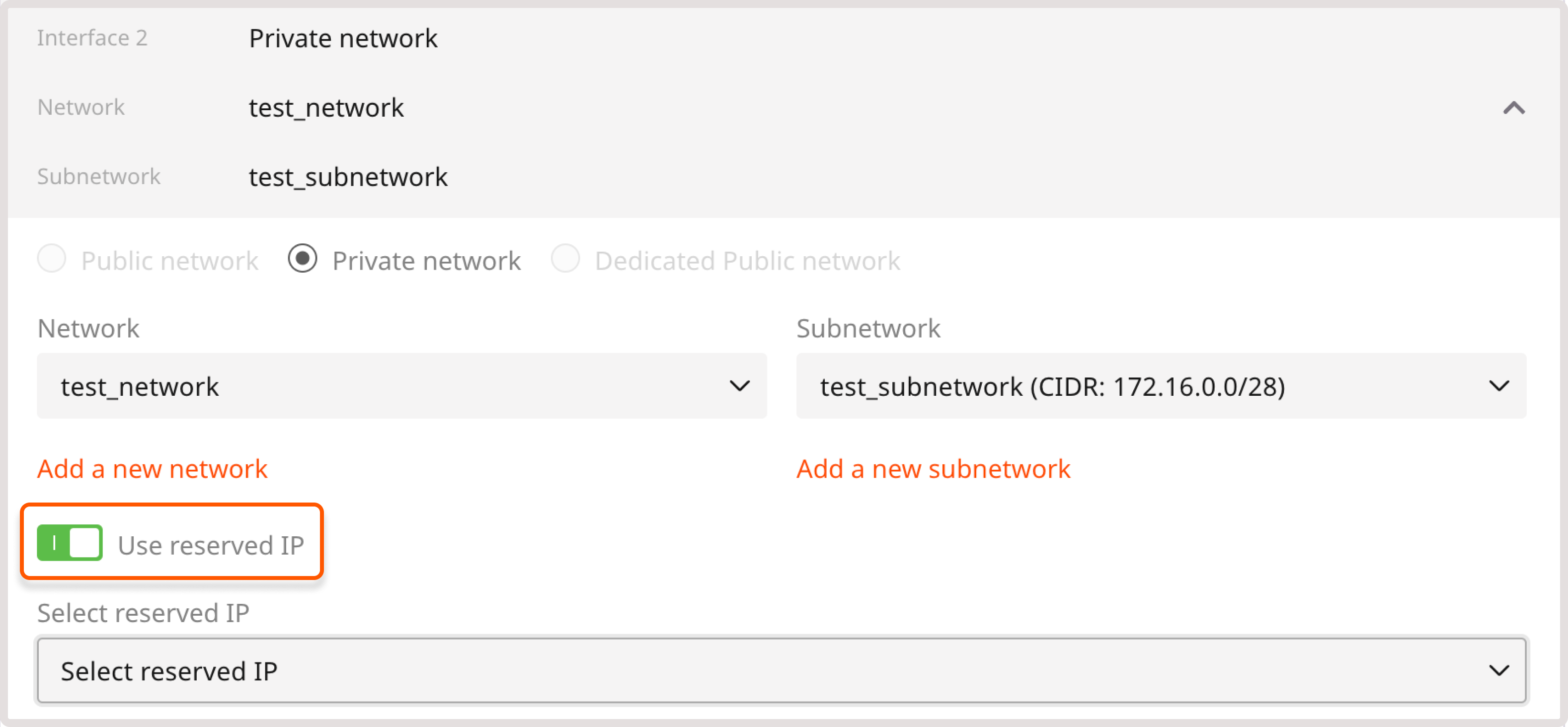
InfoIf you add a private interface after creating a Virtual Machine, you may need to configure it manually on some operating systems. The OS cannot automatically detect and apply the new interface settings, especially for Bare Metal servers. If your VM has an IPv6 address, it will be configured automatically without additional setup.
Configure the network interface in the operating system
When you add a new private network interface to an existing Virtual Machine or Bare Metal server, the operating system may not automatically configure it. You need to manually assign the IP address and set up routing. You can find the required network parameters (IP address, CIDR, and MAC address) in the Networking tab of your Virtual Machine settings: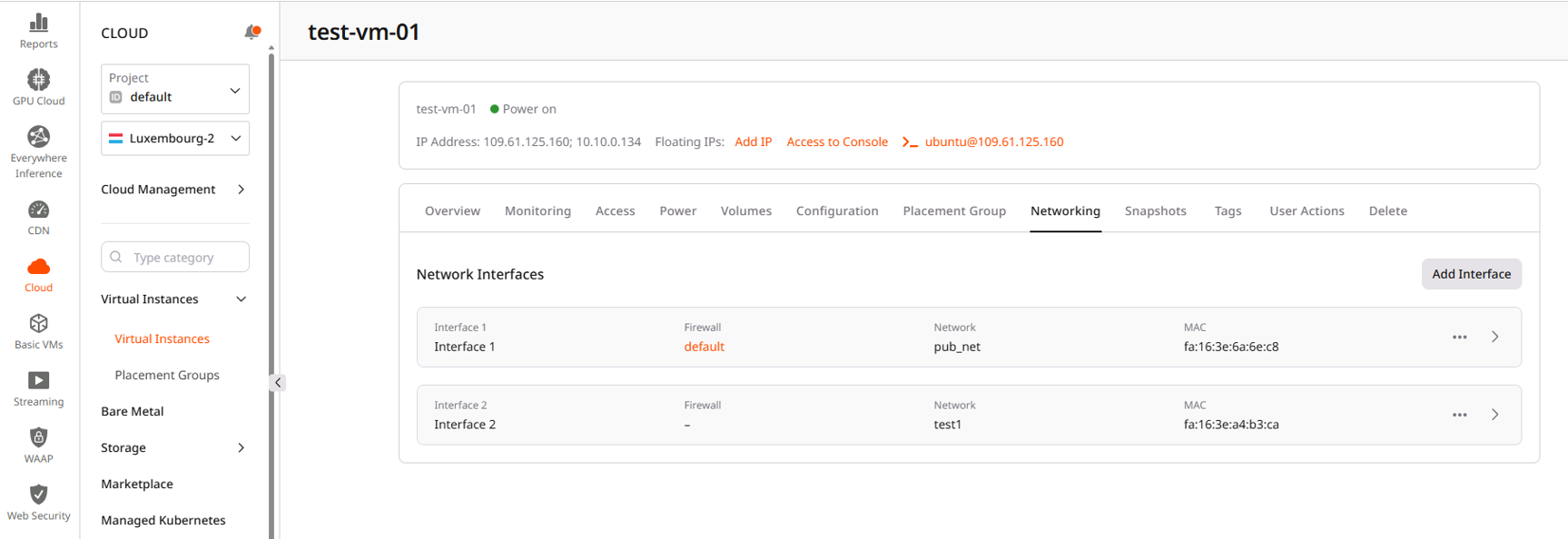
InfoThe gateway IP address is typically the first usable IP in the subnet’s CIDR range. For example, if the CIDR is
10.10.0.0/24, the gateway is 10.10.0.1.- Linux
- Windows
1. Connect to your Virtual Machine via SSH or console.2. List available network interfaces to find the new one:The new interface will appear in the list (for example, 4. Assign the IP address with the subnet mask:For example, to assign 5. (Optional) Add a route to the private network via the gateway:For example:6. Verify the configuration:
eth1, ens4, or similar). You can identify it by the MAC address shown in the portal.3. Bring up the interface:10.10.0.134 with a /24 prefix to the eth1 interface:Detach a reserved IP from a VM
Detach the subnetwork to which the reserved IP is assigned. This address will be detached from the Virtual Machine automatically.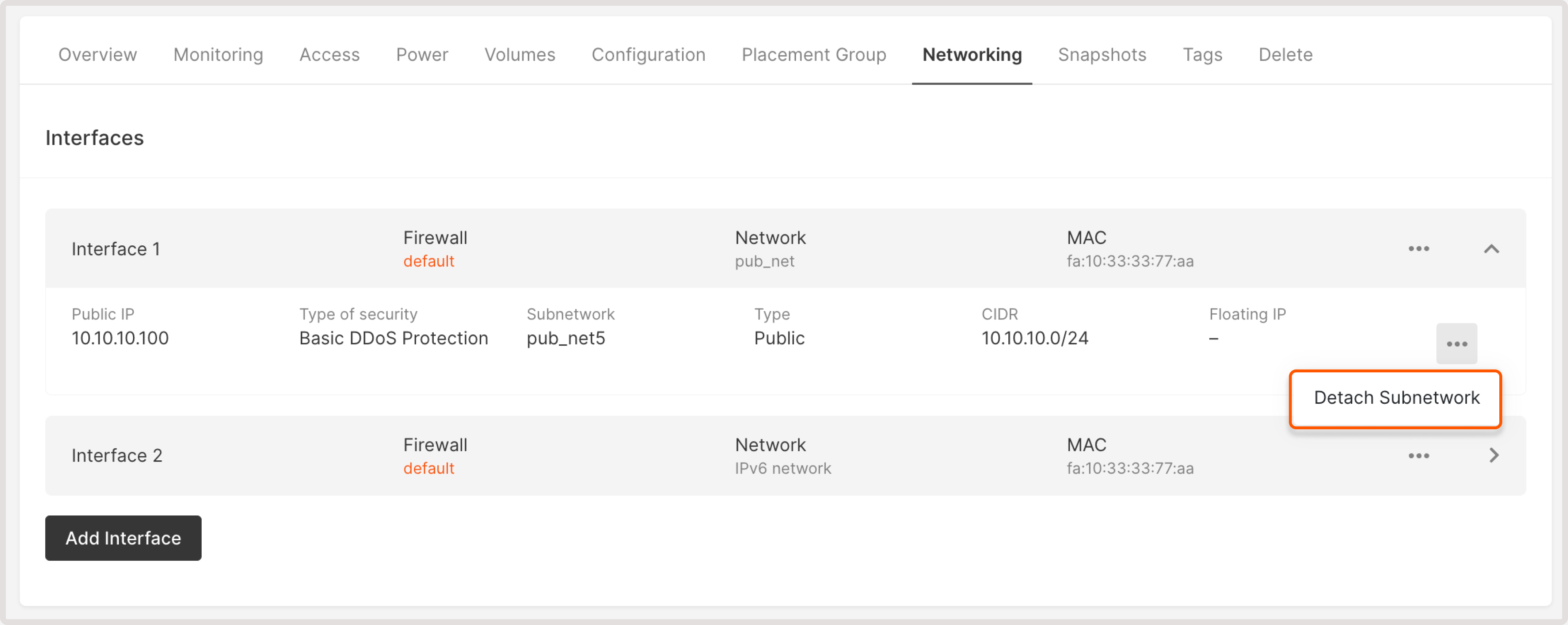
Assign a reserved IP to a load balancer
You can assign the reserved IP only during the Load Balancer creation. For instructions on how to add a Reserved IP when creating a Load Balancer, refer to the Load Balancer creation guide.Find a resource with reserved IP
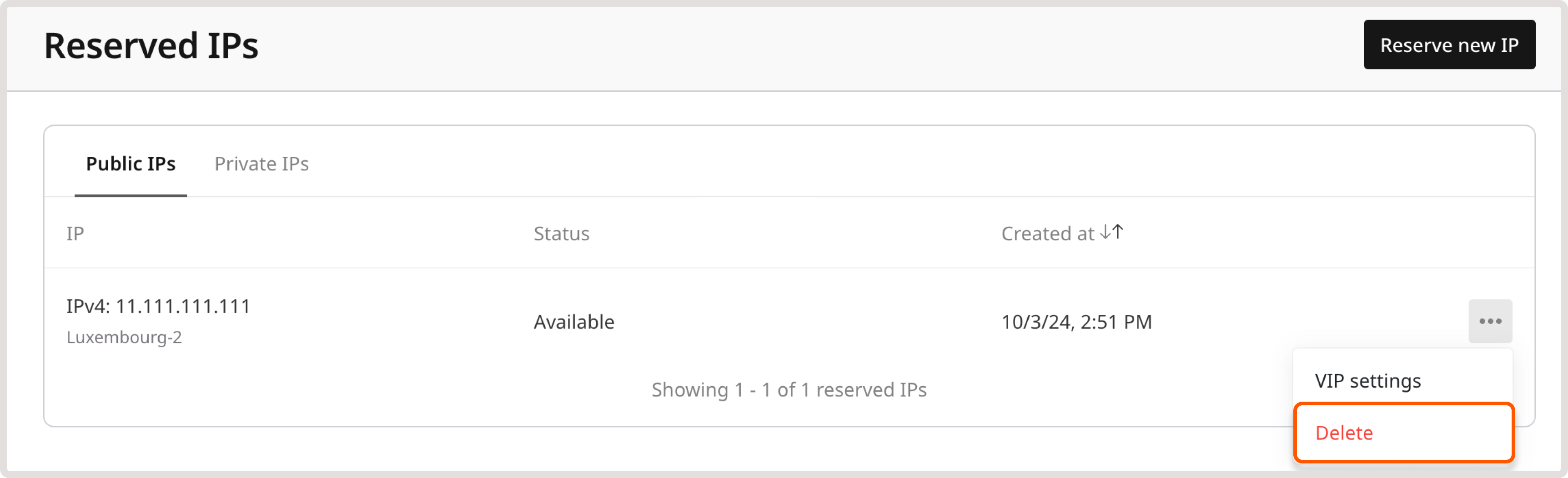
If a reserved IP address is attached to a particular resource, you’ll see this information on the Reserved IPs page, in the Status column: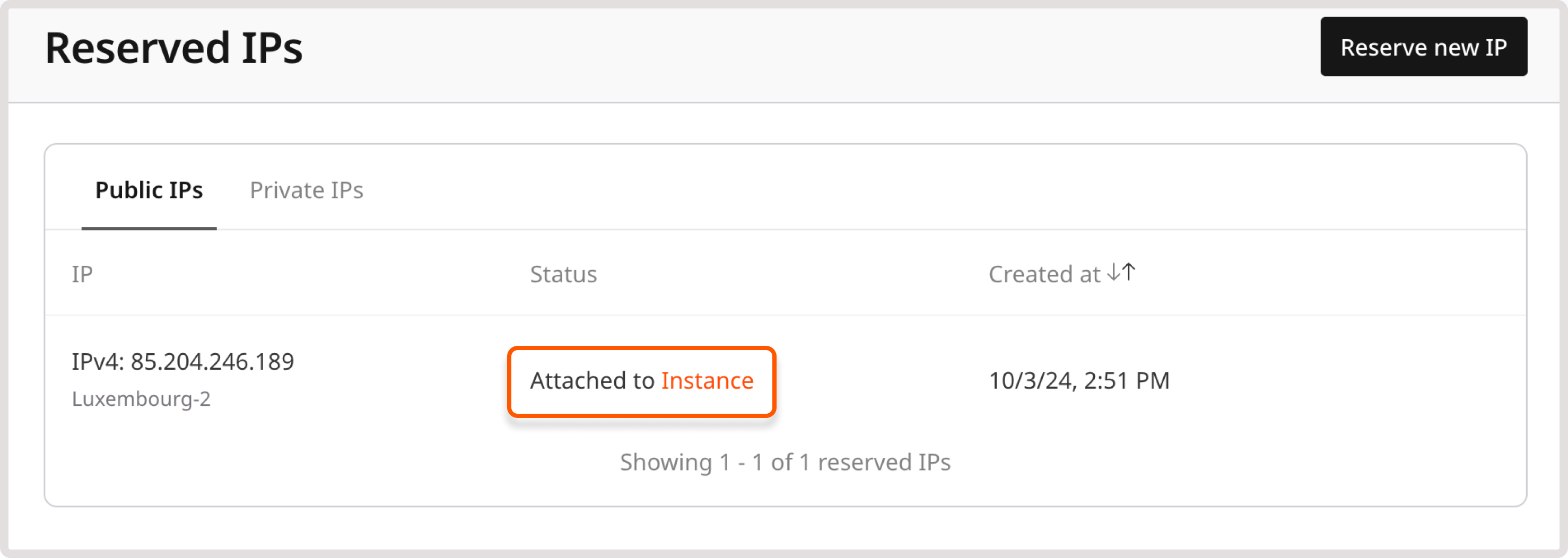
Delete a reserved IP
If the reserved IP is attached to the Virtual Machine or Load Balancer, you need to detach it first. Otherwise, you won’t be able to delete the IP. To delete a reserved IP address:- In the Gcore Customer Portal, navigate to Cloud > Networking.
- Open the Reserved IPs page.
- Click a three-dot icon next to the IP you want to delete.
- Select Delete.